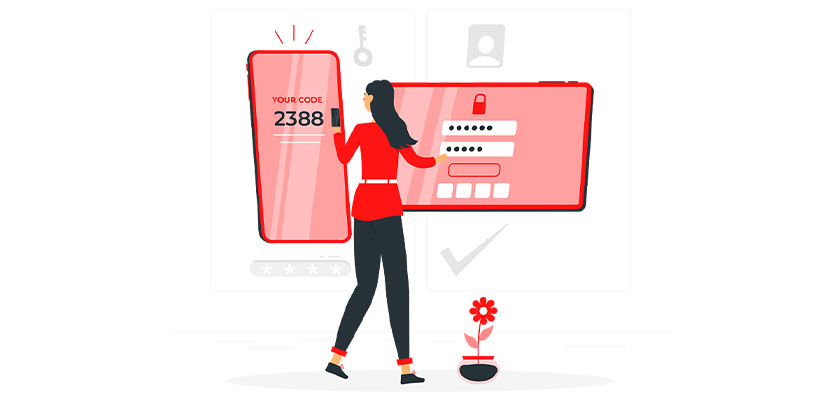
Understanding Two-Factor Authentication
Two-factor authentication (2FA) is a security measure that adds an extra layer of protection to your WordPress website by requiring a second form of verification in addition to the standard username and password. This ensures that only authorized users can access your website, significantly reducing the risk of unauthorized access due to compromised credentials.
This article is part of Rackset’s Web Development guides — browse the rest of the category for more in-depth tutorials on this topic.
How Two-Factor Authentication Works
2FA operates on the principle of “something you know” (your password) and “something you have” (a physical device or application). Here’s a typical 2FA workflow:
- The user logs in to WordPress with their username and password.
- Upon successful entry of these credentials, the user is prompted to provide a second form of authentication, typically a six-digit code.
- This code is generated by a 2FA application on a smartphone or sent via SMS to a registered mobile number.
- The user enters the code to complete the login process.
Benefits of Implementing 2FA in WordPress
- Enhanced Security: By requiring a second form of verification, 2FA drastically reduces the likelihood of unauthorized access.
- Protection Against Phishing: Even if a hacker obtains your password through phishing, they cannot access your account without the second factor.
- Compatibility: 2FA is supported by major operating systems like Apple iOS, Google Android, and Windows 10, making it accessible for most users.
Methods of Implementing 2FA
There are two primary methods to implement 2FA in WordPress:
- Using a Plugin: Several plugins are available to easily integrate 2FA into your WordPress site. These plugins offer various features and customization options to suit different security needs.
- Without a Plugin: Advanced users can manually configure 2FA by modifying WordPress code and settings, though this approach requires a deeper technical understanding.
Popular 2FA Applications
| Application | Platform | Description |
|---|---|---|
| Google Authenticator | iOS, Android | Generates time-based one-time passwords (TOTP) for secure login. |
| Authy | iOS, Android, Windows | Offers multi-device support and backup capabilities. |
| Microsoft Authenticator | iOS, Android | Provides easy integration with Microsoft services and other platforms. |
Benefits of 2FA for WordPress Security
Implementing two-factor authentication (2FA) on your WordPress site offers numerous advantages that significantly enhance your website’s security. As cyber threats continue to evolve, adding an extra layer of protection is crucial. Here are the key benefits of using 2FA for securing your WordPress site:
Enhanced Security
2FA adds a second layer of defense by requiring users to provide two forms of identification before gaining access. This makes it far more difficult for unauthorized users to breach your site, even if they have obtained your password. The second factor, typically a temporary code sent to a mobile device, ensures that only those with access to your physical device can log in.
Reduced Risk of Unauthorized Access
With 2FA, the risk of unauthorized access is significantly lowered. Passwords alone can be easily compromised through phishing, brute force attacks, or data breaches. However, 2FA requires a second verification step, which drastically reduces the likelihood of unauthorized access.
Protection Against Password Theft
Even if a hacker manages to steal your password, 2FA acts as a fail-safe. The hacker would still need the second factor, such as a code sent to your phone, to gain access. This additional step protects your site from being compromised by stolen credentials.
Increased User Trust
Implementing 2FA on your WordPress site can enhance user trust by demonstrating your commitment to security. Users are more likely to engage with a site that prioritizes their data protection, which can lead to increased traffic and user retention.
Compliance with Security Standards
Many industries and regulatory bodies require enhanced security measures to protect sensitive data. Implementing 2FA helps ensure compliance with these standards, reducing the risk of legal issues and potential fines.
Simple and Cost-Effective
Setting up 2FA is generally straightforward and cost-effective, especially when compared to the potential costs associated with a security breach. Many 2FA solutions are available for free or at a low cost, making it an accessible security measure for all WordPress site owners.
In conclusion, two-factor authentication is a critical component of a robust WordPress security strategy. By adding this extra layer of protection, you can safeguard your site against unauthorized access, build user trust, and comply with security standards, all while maintaining a cost-effective approach to website security.
Choosing Between Plugin and Non-Plugin Methods
When implementing two-factor authentication (2FA) in WordPress, you can choose between using a plugin or opting for a non-plugin method. Each approach has its own advantages and considerations, depending on your website’s needs and your technical expertise. Below, we explore both options to help you make an informed decision.
Using a Plugin for 2FA
Plugins are the most popular method for adding 2FA to WordPress sites due to their ease of use and integration capabilities. Here are some benefits and considerations:
Read more: 10 Must-Do Steps to Secure Your WordPress Site from Hackers
If you need this service, Rackset’s team provides professional WordPress support with full support so you can rely on the quality and get set up quickly.
- Ease of Use: Plugins like Google Authenticator, Wordfence Security, and Two Factor Authentication offer straightforward setup processes, often requiring just a few clicks to configure.
- Features: Many plugins provide additional security features, such as login attempt limits, IP blocking, and security logs, enhancing overall site protection.
- Updates and Support: Reputable plugins are regularly updated to patch vulnerabilities and add new features, ensuring ongoing security.
- Compatibility: Ensure the plugin is compatible with your current WordPress version and other installed plugins to avoid conflicts.
Non-Plugin Methods for 2FA
For those who prefer not to use plugins, there are alternative methods to implement 2FA, although they may require more technical knowledge:
- Custom Code: You can add custom code to your theme’s
functions.phpfile to integrate 2FA. This method offers more control but requires PHP coding skills. - Third-Party Services: Services like Authy or Duo Security can be configured to work with WordPress through APIs. This method involves setting up an account with the service and integrating it with your site.
- Server-Level Configuration: Some hosting providers offer built-in 2FA solutions that can be configured at the server level, bypassing the need for WordPress-specific plugins.
Conclusion
Choosing between a plugin and a non-plugin method for implementing 2FA in WordPress depends on your specific needs and technical capabilities. Plugins offer convenience and additional features, while non-plugin methods provide more control and customization. Evaluate your website’s requirements and your comfort level with technical configurations to select the best approach for enhancing your site’s security.
Step-by-Step Guide to Setting Up 2FA with a Plugin
Implementing two-factor authentication (2FA) on your WordPress site using a plugin is a straightforward process. This guide will walk you through the steps to enhance your website’s security.
1. Choose a 2FA Plugin
There are several reliable plugins available for adding 2FA to your WordPress site. Some popular options include:
- Google Authenticator
- Two Factor Authentication by WP White Security
- Wordfence Security
For this guide, we’ll use the Google Authenticator plugin as an example.
2. Install and Activate the Plugin
- Log in to your WordPress admin dashboard.
- Navigate to Plugins > Add New.
- Search for “Google Authenticator”.
- Click Install Now next to the plugin.
- Once installed, click Activate.
3. Configure the Plugin
- Go to Users > Your Profile.
- Scroll down to the Google Authenticator Settings section.
- Check the box to Enable the Google Authenticator.
- Open the Google Authenticator app on your smartphone.
- Scan the QR code displayed on your WordPress profile page.
- Enter the six-digit code from the app into the Authentication Code field.
- Save your profile settings.
4. Test the 2FA Setup
To ensure everything is working correctly, log out of your WordPress account and attempt to log back in. After entering your username and password, you should be prompted to enter a six-digit code from the Google Authenticator app.
Troubleshooting
If you encounter any issues, consider the following:
- Ensure your smartphone’s time settings are correct, as this can affect code generation.
- If you can’t access your phone, use backup codes if the plugin provides them.
- Check plugin documentation for additional support.
By following these steps, you can significantly improve your WordPress site’s security with two-factor authentication.
Setting Up 2FA Without a Plugin
Implementing two-factor authentication (2FA) without a plugin in WordPress involves several technical steps, but it can be accomplished efficiently by following the process carefully. This method is ideal for those who prefer not to use additional plugins or want more control over their website’s security features.
Prerequisites
- Access to your WordPress site’s files via FTP or a file manager.
- Basic understanding of PHP and the WordPress file structure.
- An authenticator app installed on your smartphone (e.g., Google Authenticator, Authy).
Steps to Implement 2FA
-
Access Your WordPress Files
Use FTP or your hosting provider’s file manager to access your WordPress installation files. Navigate to the
wp-content/themes/your-theme-folderdirectory. -
Edit the
functions.phpFileAdd the following code snippet to your theme’s
functions.phpfile. This code integrates a basic 2FA mechanism using a secret key and a time-based one-time password (TOTP).function custom_2fa_setup() { if (is_user_logged_in()) { $user_id = get_current_user_id(); $secret = get_user_meta($user_id, '2fa_secret', true); if (!$secret) { $secret = base32_encode(random_bytes(10)); update_user_meta($user_id, '2fa_secret', $secret); } $otp = new OTPHPTOTP($secret); echo '2FA Code: ' . $otp->now(); } } add_action('wp_footer', 'custom_2fa_setup'); -
Generate and Store the Secret Key
Ensure that each user has a unique secret key stored in their user metadata. This key will be used to generate time-based codes that the user must enter along with their password.
If you need this service, Rackset’s team provides professional WordPress hosting with full support so you can rely on the quality and get set up quickly.
-
Implement the Verification Process
Modify the login process to require the 2FA code. This involves checking the entered code against the generated TOTP code. You can do this by hooking into the login process and verifying the code before allowing access.
Testing Your 2FA Implementation
Once you have set up 2FA, test it thoroughly by logging in with different user accounts to ensure that the 2FA process works as expected. If issues arise, check the error logs and debug the code accordingly.
By following these steps, you can enhance your website’s security without relying on additional plugins, giving you a more streamlined and controlled approach to protecting your WordPress site.
Common 2FA Tools and Apps for WordPress
Implementing two-factor authentication (2FA) in WordPress is a robust method to enhance your website’s security. Many tools and apps are available to facilitate this process, whether you prefer using plugins or implementing 2FA without them. Below are some of the most popular options:
WordPress 2FA Plugins
- Google Authenticator: This plugin integrates seamlessly with the Google Authenticator app, providing time-based one-time passwords (TOTP) for secure login.
- Two Factor Authentication: Developed by the team at WordPress.org, this plugin supports various authentication methods, including email and TOTP.
- Wordfence Security: Known for its comprehensive security features, Wordfence also offers 2FA as part of its suite, supporting both SMS and TOTP.
- iThemes Security: A popular security plugin that includes 2FA, allowing users to authenticate using mobile apps or email.
External 2FA Apps
- Authy: A versatile app that supports multiple devices and cloud backups, making it easy to manage 2FA codes across different platforms.
- Duo Mobile: Offers push notifications for quick authentication and is widely used in enterprise environments.
- Microsoft Authenticator: Provides a secure and straightforward way to manage 2FA codes, with support for passwordless login.
Implementing 2FA Without Plugins
For those who prefer not to use plugins, 2FA can be implemented manually by integrating external APIs or using custom code. This approach requires advanced technical skills but offers more control over the authentication process.
Example Code for Custom 2FA
// Example: Adding a custom 2FA field to the login form
add_action('login_form', 'add_2fa_field');
function add_2fa_field() {
    echo '<p><label for="2fa_code">2FA Code</label><br/>';
    echo '<input type="text" name="2fa_code" id="2fa_code" class="input" size="20"/></p>';
}

// Validate the 2FA code
add_filter('authenticate', 'validate_2fa_code', 30, 3);
function validate_2fa_code($user, $username, $password) {
    $code = $_POST['2fa_code'];
    // Custom logic to verify the 2FA code
    if (!verify_2fa_code($username, $code)) {
        return new WP_Error('authentication_failed', __('ERROR: Invalid 2FA code.'));
    }
    return $user;
}
By choosing the right 2FA tool or app, you can significantly improve the security of your WordPress site, protecting it from unauthorized access and potential breaches.
Troubleshooting Common 2FA Issues
Implementing two-factor authentication (2FA) on your WordPress site is a robust way to enhance security. However, users may encounter some issues during setup or use. Below are common problems and their solutions to ensure your 2FA runs smoothly.
Problem: Not Receiving 2FA Codes
One common issue is not receiving the authentication codes. This can occur due to several reasons:
- Email Delivery Issues: If you’re using email for 2FA codes, check your spam or junk folder. Ensure your email server settings allow emails from your WordPress domain.
- SMS Delays: If using SMS, network delays can cause issues. Ensure you have a stable connection and that your phone number is correctly entered.
- Authenticator App Sync: Ensure your phone’s time is synced correctly, as time discrepancies can prevent code generation.
Problem: Locked Out of Account
If you lose access to your 2FA method, follow these steps:
- Backup Codes: Use backup codes provided during 2FA setup. Always store these codes securely.
- Contact Your Administrator: If you are not the site admin, contact the administrator to help disable 2FA temporarily.
- Database Access: As a last resort, access your WordPress database via phpMyAdmin and disable the 2FA plugin. Execute the following SQL command:
UPDATE wp_usermeta SET meta_value = '' WHERE meta_key = 'your_2fa_meta_key' AND user_id = 1;
Problem: 2FA Plugin Conflicts
Conflicts with other plugins can disrupt 2FA functionality:
- Disable Other Plugins: Temporarily disable other plugins to identify conflicts. Reactivate them one by one to isolate the issue.
- Plugin Updates: Ensure all plugins, including your 2FA plugin, are up to date to prevent compatibility issues.
Problem: Users Bypassing 2FA
Ensure that 2FA is enforced for all users:
Read more: Adding a Website to Cloudflare: Step-by-Step Guide
- Enforce 2FA: Use a plugin that allows you to enforce 2FA for specific user roles.
- Regular Audits: Conduct regular audits to ensure compliance with 2FA policies.
By addressing these common issues, you can maintain a secure and efficient 2FA setup on your WordPress site.
Best Practices for Maintaining WordPress Security
Implementing two-factor authentication (2FA) is a crucial step towards securing your WordPress site, but it should be part of a broader security strategy. Here are some best practices to maintain robust WordPress security:
WordPress sites run faster and safer on a platform tuned for them. Rackset’s managed WordPress hosting adds WordPress-specific caching, security and automatic updates so your site stays quick and protected.
1. Keep WordPress Updated
Ensure that your WordPress core, themes, and plugins are always up to date. Developers regularly release updates to patch security vulnerabilities. Set up automatic updates or routinely check for updates to minimize risks.
2. Use Strong Passwords
Encourage all users to create strong passwords that include a combination of letters, numbers, and special characters. Avoid common words or easily guessable information. Consider using a password manager to generate and store complex passwords securely.
3. Implement Two-Factor Authentication
Adding 2FA to your WordPress site provides an extra layer of security. This can be done using plugins like Google Authenticator, Authy, or through custom code. Ensure that all users, especially administrators, have 2FA enabled.
4. Secure Your WordPress Hosting
Invest in secure WordPress hosting that offers robust security features like firewalls, malware scanning, and regular backups. A reliable hosting provider can significantly reduce the risk of attacks.
5. Regular Backups
Regularly back up your WordPress site to ensure you can quickly restore it in case of a security breach. Use plugins like UpdraftPlus or BackupBuddy, and store backups in a secure location.
6. Limit Login Attempts
Limit the number of login attempts to prevent brute force attacks. You can use plugins like Login LockDown to restrict the number of failed login attempts.
7. Use a Web Application Firewall (WAF)
A WAF can help protect your site by filtering and monitoring HTTP traffic between a web application and the Internet. It blocks malicious traffic and prevents attacks like SQL injection and cross-site scripting (XSS).
8. Regular Security Audits
Conduct regular security audits to identify vulnerabilities and address them promptly. Use security plugins like Wordfence or Sucuri to scan for malware and other threats.
Example of a Simple .htaccess Rule to Protect the wp-config.php File
# Protect wp-config.php

    order allow,deny
    deny from all
By following these best practices, you can significantly enhance the security of your WordPress site and protect it from potential threats.
Secure Your WordPress Seamlessly
Boost your site’s security with expert guidance from Rackset. Our specialized WordPress support ensures your two-factor authentication setup is flawless and future-proof.
Strengthen your WordPress with our expert help!
Conclusion
Implementing Two-Factor Authentication (2FA) in WordPress is a crucial step toward enhancing the security of your website. By adding an extra layer of protection, you significantly reduce the risk of unauthorized access and potential data breaches. Whether you choose to use a plugin or configure 2FA through your hosting provider, the process is straightforward and well worth the effort. Ensure that you regularly update your authentication methods and educate your users on the importance of maintaining strong security practices.
As cyber threats continue to evolve, staying proactive about your website’s security is essential. Consider exploring other security measures, such as regular backups and SSL certificates, to further safeguard your online presence. If you are looking for reliable web hosting services that prioritize security, explore Rackset’s offerings to find the perfect solution for your needs. Empower your WordPress site with robust security measures today and enjoy peace of mind knowing your data is protected.
Frequently Asked Questions
What is Two-Factor Authentication (2FA)?
Two-Factor Authentication (2FA) is an additional security layer for your WordPress site. It requires not only a password and username but also something that only the user has on them, i.e., a piece of information only they should know or have immediately to hand, such as a physical token.
Why should I implement 2FA on my WordPress site?
Implementing 2FA significantly enhances the security of your WordPress site by reducing the risk of unauthorized access. Even if a hacker obtains your password, they would still need the second factor to gain access.
How can I enable 2FA on WordPress?
You can enable 2FA on WordPress by installing a plugin like ‘Google Authenticator’ or ‘Wordfence Security’. These plugins guide you through setting up 2FA, typically involving scanning a QR code with an authentication app on your smartphone.
What authentication apps can I use for 2FA in WordPress?
Popular authentication apps include Google Authenticator, Authy, and Microsoft Authenticator. These apps generate time-based one-time passwords (TOTPs) that you can use as your second factor during login.
Can I set up 2FA for multiple users in WordPress?
Yes, most 2FA plugins for WordPress allow you to enable 2FA for multiple user accounts. Administrators can enforce 2FA for all users or specific user roles, enhancing overall site security.

Behzad Nategh is the Founder and CEO of Rackset, with 20+ years in web hosting, cloud infrastructure, and web design. He writes on hosting, domains, security, and growing an online business.
Leave a Reply