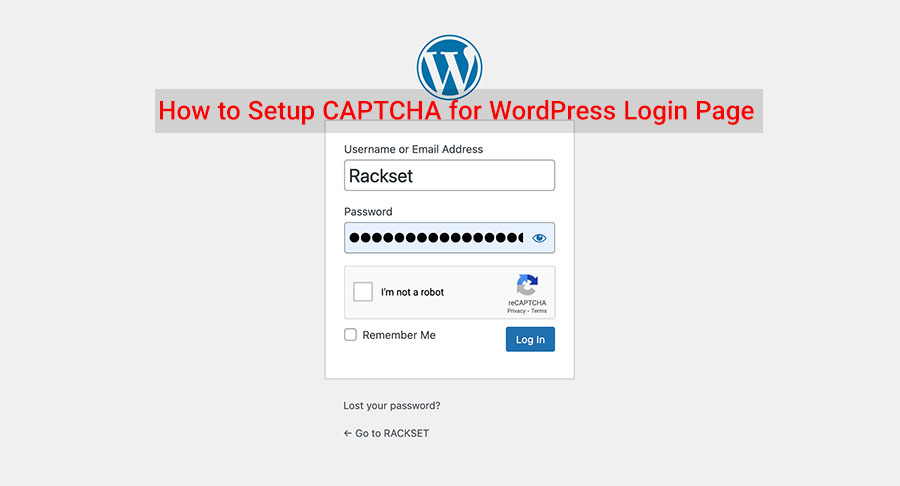
Understanding CAPTCHA and Its Importance
There’s no doubt that WordPress security is vital. A security breach could cause serious harm to your website. When hackers use bots to swiftly and efficiently attack websites, it may seem like the odds are against you. However, implementing a Completely Automated Public Turing test to determine Computers and Humans Apart (CAPTCHA) is a straightforward and effective way to enhance your website’s security.
This article is part of Rackset’s Web Development guides — browse the rest of the category for more in-depth tutorials on this topic.
What is CAPTCHA?
CAPTCHA, which stands for Completely Automated Public Turing test to tell Computers and Humans Apart, is a test designed to determine if the user is a human or a bot. This test differentiates humans from computers by analyzing various aspects of user interaction. The manner in which CAPTCHA functions depends on the type of CAPTCHA being used. Some of the most well-known types include:
- Text-based CAPTCHA: Users are required to enter a sequence of characters displayed in a distorted image.
- Image-based CAPTCHA: Users need to select images that fit a particular criterion, such as identifying all images with traffic lights.
- Audio CAPTCHA: An audio clip is played, and users must type the words they hear.
- Invisible CAPTCHA: Utilizes behavioral analysis to determine if the user is a human, often without the user even noticing.
The Importance of CAPTCHA
CAPTCHA plays a crucial role in enhancing WordPress security by performing the following functions:
- Preventing Automated Attacks: CAPTCHA effectively blocks bots from executing brute force attacks on login pages, preventing unauthorized access.
- Reducing Spam: By verifying human users, CAPTCHA reduces spam submissions in forms, comments, and registration pages.
- Protecting Sensitive Data: Ensures that only legitimate users can access sensitive information, safeguarding user data and privacy.
- Maintaining Website Performance: By reducing bot traffic, CAPTCHA helps maintain optimal website performance and resource usage.
In summary, CAPTCHA is an essential tool for maintaining WordPress security. It helps to protect your website from malicious bots and ensures that only human users can access sensitive areas. Implementing CAPTCHA is a simple yet effective step towards securing your WordPress site.
Different Types of CAPTCHA for WordPress
CAPTCHA is an essential tool for enhancing WordPress security by preventing unauthorized access and spam. There are several types of CAPTCHA available, each with its unique method of distinguishing between humans and bots. Below, we explore the different types of CAPTCHA that you can implement on your WordPress site.
Text-Based CAPTCHA
Text-based CAPTCHA is one of the oldest and most common forms. It involves displaying distorted text that users must decipher and enter into a text box. While effective, it can sometimes be difficult for users to read, potentially leading to frustration.
Image-Based CAPTCHA
This type of CAPTCHA requires users to identify objects within images. For example, users may be asked to select all images that contain a certain object, such as a car or a tree. This method is generally more user-friendly than text-based CAPTCHA.
ReCAPTCHA
Developed by Google, reCAPTCHA is a popular choice for WordPress sites. It offers two versions:
- reCAPTCHA v2: Users must check a box indicating they are not a robot. Sometimes, additional challenges like selecting images are presented.
- reCAPTCHA v3: This version is invisible to users and works in the background. It assigns a score based on user interactions to determine if the user is a bot.
hCAPTCHA
hCAPTCHA is similar to reCAPTCHA but focuses on privacy and security. It provides image recognition challenges and is often used by websites looking for a more privacy-focused solution.
Math CAPTCHA
Math CAPTCHA presents users with simple math problems, such as addition or subtraction, that they must solve to proceed. This type is straightforward and can be an effective deterrent against bots.
Audio CAPTCHA
For users with visual impairments, audio CAPTCHA offers an alternative. It presents a sequence of numbers or letters in an audio format that users must listen to and enter. However, it can be challenging for users in noisy environments.
Conclusion
Choosing the right type of CAPTCHA for your WordPress site depends on your specific needs and user base. Each type has its strengths and weaknesses, so it’s essential to consider factors like usability, accessibility, and security when making your decision.
How CAPTCHA Enhances WordPress Security
Implementing CAPTCHA on your WordPress site is a highly effective strategy to bolster security. By distinguishing human users from automated bots, CAPTCHA helps mitigate several security threats that could compromise your website. Below are the key ways in which CAPTCHA enhances WordPress security:
Read more: Top 5 Plugins to Change WordPress Login URL
If you need this service, Rackset’s team provides professional WordPress hosting with full support so you can rely on the quality and get set up quickly.
Protection Against Brute Force Attacks
Brute force attacks involve automated scripts attempting to gain access to your WordPress site by trying different username and password combinations. CAPTCHA effectively blocks these scripts by requiring a human verification step, thereby preventing unauthorized access.
Mitigation of Spam
Spam comments and form submissions can clutter your site and potentially lead to vulnerabilities. CAPTCHA ensures that only legitimate users can submit forms or comments, significantly reducing the amount of spam your site receives.
Prevention of Account Takeovers
By using CAPTCHA, you add an extra layer of security during login attempts, making it more difficult for attackers to hijack user accounts. This is particularly crucial for sites with multiple user accounts, such as e-commerce or membership sites.
Reduction of Server Load
Bots can place a heavy load on your server by making numerous requests in a short period. CAPTCHA helps to filter out these unwanted requests, reducing server strain and potentially improving site performance.
Enhanced User Experience
While CAPTCHA might seem like a minor inconvenience, it actually enhances user experience in the long run by keeping your site secure and free from spam. This ensures that legitimate users can interact with your site without disruptions.
Types of CAPTCHA
- Text-based CAPTCHA: Users must enter the text from a distorted image.
- Image-based CAPTCHA: Users select images that match a given description.
- Audio CAPTCHA: An audio clip is played, and users enter the spoken words.
- reCAPTCHA: A Google-provided service that uses advanced risk analysis to differentiate humans from bots.
By deploying CAPTCHA on your WordPress site, you take a proactive step in safeguarding your online presence. Whether through plugins or hosting support, implementing CAPTCHA is a straightforward yet powerful tool in your security arsenal.
Steps to Install a CAPTCHA Plugin on WordPress
Implementing CAPTCHA on your WordPress site is a straightforward process that involves installing a plugin. Follow these steps to enhance your site’s security by preventing automated bots from accessing your website.
Step 1: Choose a CAPTCHA Plugin
There are several CAPTCHA plugins available for WordPress. Some popular options include:
- Google Captcha (reCAPTCHA) by BestWebSoft
- Simple Google reCAPTCHA
- Captcha by WPForms
Select a plugin that best fits your needs. Consider factors such as ease of use, compatibility with your current WordPress version, and the type of CAPTCHA it offers (e.g., image-based, checkbox, invisible).
Step 2: Install the Plugin
- Log in to your WordPress admin dashboard.
- Navigate to Plugins > Add New.
- In the search bar, type the name of the CAPTCHA plugin you have chosen.
- Once you find the plugin, click Install Now.
- After installation, click Activate to enable the plugin.
Step 3: Configure the Plugin Settings
Once activated, you need to configure the plugin to work with your site:
- Go to Settings > [Your CAPTCHA Plugin Name].
- Follow the on-screen instructions to set up the CAPTCHA. This often includes obtaining API keys if using Google reCAPTCHA.
- Customize the CAPTCHA settings according to your preferences. You can typically choose where the CAPTCHA will appear, such as login, registration, or comment forms.
Example: Setting Up Google reCAPTCHA
- Visit the Google reCAPTCHA website and log in with your Google account.
- Register your site to get the Site Key and Secret Key.
- Enter these keys into the plugin settings within your WordPress dashboard.
- Save the changes to apply the configuration.
Step 4: Test the CAPTCHA
After setting up the plugin, it’s important to verify that the CAPTCHA is working correctly:
- Log out of your WordPress site.
- Attempt to log back in and ensure the CAPTCHA appears as expected.
- Complete the CAPTCHA to confirm it functions properly.
If the CAPTCHA does not work as intended, revisit the plugin settings to troubleshoot or consult the plugin’s support documentation for assistance.
By following these steps, you can effectively add an additional layer of security to your WordPress site, helping to deter unwanted bot activity.
Read more: 10 Easy Steps To Secure Your WordPress Login Page
WordPress sites run faster and safer on a platform tuned for them. Rackset’s managed WordPress hosting adds WordPress-specific caching, security and automatic updates so your site stays quick and protected.
Configuring CAPTCHA for Login and Registration
Securing your WordPress login and registration pages with CAPTCHA is an effective way to deter automated attacks. By requiring users to complete a CAPTCHA test, you can significantly reduce the risk of spam and unauthorized access. Here’s how to configure CAPTCHA for these critical points on your WordPress site:
Using a CAPTCHA Plugin
One of the easiest methods to add CAPTCHA to your WordPress login and registration forms is by using a plugin. Follow these steps to configure CAPTCHA using a popular plugin:
- Install a CAPTCHA Plugin: Navigate to the WordPress dashboard, go to Plugins > Add New, and search for a CAPTCHA plugin such as reCAPTCHA by BestWebSoft or Google Captcha (reCAPTCHA). Click Install Now and then Activate the plugin.
- Configure the Plugin: Once activated, go to the plugin’s settings page. This is usually located under the Settings menu or directly under the Plugins menu.
- Obtain API Keys: For plugins like Google reCAPTCHA, you’ll need to register your site with Google to obtain a Site Key and a Secret Key. Visit the Google reCAPTCHA admin console to get these keys.
- Enter API Keys: Enter the Site Key and Secret Key into the appropriate fields in the plugin settings.
- Select Forms to Protect: Choose which forms you want to protect. Most plugins allow you to enable CAPTCHA for login, registration, password recovery, and comment forms.
- Save Changes: Once you’ve configured the settings, save your changes to apply CAPTCHA protection.
Testing the CAPTCHA Integration
After configuring the plugin, it’s important to test the integration to ensure it’s working correctly:
- Log Out: Log out of your WordPress admin dashboard to test the login form.
- Attempt to Log In: Navigate to the login page and attempt to log in. You should see the CAPTCHA challenge appear.
- Register a New Account: Go to the registration page and verify that the CAPTCHA is active there as well.
- Check Functionality: Ensure that the CAPTCHA functions correctly and does not impede legitimate users from accessing your site.
Implementing CAPTCHA on your WordPress site is a crucial step in enhancing security. By following these steps, you can protect your login and registration forms from malicious bots and keep your site secure.
Best Practices for Using CAPTCHA on WordPress
Implementing CAPTCHA on your WordPress site is a powerful way to enhance security, but it’s essential to follow best practices to ensure it is effective and user-friendly. Here are some key strategies to consider:
Choose the Right CAPTCHA Type
CAPTCHA comes in various forms, each with its own advantages and disadvantages. Consider the following types:
- Text-based CAPTCHA: Requires users to type letters or numbers from a distorted image. It’s simple but can sometimes be too challenging for users.
- Image-based CAPTCHA: Asks users to select specific images, such as all images containing a car. It’s user-friendly but may not be accessible to visually impaired users.
- Invisible CAPTCHA: Utilizes behavioral analysis to detect bots without user interaction. It’s seamless but may not be as robust against sophisticated bots.
Implement CAPTCHA on Key Pages
To maximize security, apply CAPTCHA on critical areas of your WordPress site:
- Login Page: Prevent unauthorized access by requiring CAPTCHA verification.
- Registration Forms: Stop bots from creating fake accounts.
- Comment Sections: Reduce spam comments by ensuring only real users can post.
Balance Security and Usability
While CAPTCHA is effective, it can also be a barrier to genuine users if not implemented thoughtfully. Consider the following tips:
- Use Simple CAPTCHAs: Choose CAPTCHAs that are easy for humans to solve but difficult for bots.
- Offer Audio Options: Provide audio CAPTCHAs for visually impaired users.
- Minimize CAPTCHA Frequency: Only require CAPTCHA when necessary, such as after multiple failed login attempts.
Regularly Update and Test CAPTCHA
Ensure your CAPTCHA implementation remains effective by:
- Updating Plugins: Keep your CAPTCHA plugins up-to-date to benefit from the latest security enhancements.
- Testing for Compatibility: Regularly test your CAPTCHAs to ensure they work well with your site’s design and functionality.
By following these best practices, you can leverage CAPTCHA to significantly enhance your WordPress site’s security while maintaining a positive user experience.
Troubleshooting Common CAPTCHA Issues
Implementing CAPTCHA on your WordPress site is a proactive step towards enhancing security. However, like any other technology, it can sometimes present challenges. Below are some common CAPTCHA issues and practical solutions to resolve them.
CAPTCHA Not Displaying
If the CAPTCHA is not showing on your WordPress login page, consider the following troubleshooting steps:
Read more: How to Secure Your WordPress Admin Login URL
- Plugin Conflicts: Deactivate other plugins one by one to identify any conflicts. Some plugins might interfere with CAPTCHA scripts.
- Theme Compatibility: Switch to a default WordPress theme (like Twenty Twenty-One) to check if the issue is theme-related.
- JavaScript Errors: Inspect your browser console for JavaScript errors, as these can prevent CAPTCHA from loading.
- Incorrect API Keys: Verify that you have entered the correct API keys for CAPTCHA services like Google reCAPTCHA.
CAPTCHA Validation Failing
When users correctly solve the CAPTCHA but still cannot log in, try these solutions:
If you need this service, Rackset’s team provides professional WordPress support with full support so you can rely on the quality and get set up quickly.
- Server Time Synchronization: Ensure your server’s time is synchronized, as time discrepancies can cause validation errors.
- Check for Caching Issues: Clear your site and browser cache. Caching plugins may serve outdated CAPTCHA challenges.
- Reconfigure CAPTCHA Settings: Double-check your CAPTCHA settings in the plugin configuration panel for any misconfigurations.
CAPTCHA Too Difficult for Users
If users find the CAPTCHA too challenging, it might deter them from accessing your site:
- Use a Different CAPTCHA Type: Consider switching to a simpler CAPTCHA type, such as image-based or checkbox-based CAPTCHAs.
- Adjust Difficulty Settings: Some plugins allow you to adjust the difficulty level of the CAPTCHA challenge.
CAPTCHA Causing Accessibility Issues
CAPTCHAs can sometimes pose accessibility challenges for users with disabilities:
- Provide Alternative Solutions: Ensure your CAPTCHA solution offers audio challenges for visually impaired users.
- Use Accessible CAPTCHA Plugins: Choose CAPTCHA plugins that prioritize accessibility, such as those supporting ARIA attributes.
By addressing these common issues, you can ensure that CAPTCHA enhances your WordPress site’s security without hindering user experience.
Alternatives to CAPTCHA for WordPress Security
While CAPTCHA is a popular method to enhance WordPress security, it is not the only option available. Some users find CAPTCHA inconvenient or inaccessible, so exploring alternatives can be beneficial. Here are several effective methods to improve your WordPress security without relying on CAPTCHA:
1. Two-Factor Authentication (2FA)
Two-Factor Authentication adds an extra layer of security by requiring not only a password but also a second factor, such as a code sent to a mobile device.
- Install a WordPress plugin like Google Authenticator or Authy.
- After entering your password, you’ll need to input a code from your authentication app.
2. Limit Login Attempts
Limiting login attempts can effectively prevent brute force attacks by restricting the number of times a user can attempt to log in.
- Use plugins like Limit Login Attempts Reloaded to configure maximum login attempts.
- Set a lockout duration after a specified number of failed attempts.
3. Honeypot Technique
The honeypot technique involves adding hidden fields to your forms that humans won’t fill out but bots will. This method is invisible to users but effective against automated scripts.
- Implement using plugins such as Honeypot for Contact Form 7.
- No user interaction is required, making it user-friendly.
4. Security Questions
Adding security questions to your login process can deter unauthorized access by requiring answers to personal questions.
- Use plugins like WP Security Question to add this feature.
- Choose questions that only the account owner would know.
5. Email Verification
Email verification requires users to verify their identity through a link sent to their email address, ensuring that only legitimate users can access your site.
- Plugins like Email Verification for WooCommerce can be used for this purpose.
- This method is especially effective for new registrations.
By implementing these alternatives to CAPTCHA, you can significantly enhance your WordPress security while maintaining a user-friendly experience. Choose the methods that best fit your website’s needs to keep it secure against unwanted access.
Boost Security with Our Hosting
Secure your WordPress site effortlessly with Rackset’s advanced hosting solutions. Our platform seamlessly integrates essential security features, including CAPTCHA, to protect against malicious attacks.
Trust Rackset for unbeatable WordPress security!
Conclusion
Implementing CAPTCHA on your WordPress site is a straightforward yet powerful way to enhance security by preventing automated bots from exploiting your site. By integrating CAPTCHA, you can significantly reduce spam comments, protect login pages, and safeguard user registration forms. This added layer of security not only helps maintain the integrity of your site but also improves the overall user experience by ensuring that interactions are genuine and relevant. With a variety of CAPTCHA plugins available, you can choose the one that best fits your needs and easily configure it to offer optimal protection without compromising usability.
As you continue to build and secure your online presence, consider CAPTCHA a vital component of your WordPress security strategy. Regularly update your CAPTCHA settings and stay informed about new threats and technologies to keep your site safe. If you’re ready to take the next step in fortifying your website, explore our range of hosting solutions that offer robust security features and expert support. Let Rackset help you create a secure and reliable online environment for your users.
Frequently Asked Questions
What is CAPTCHA and why is it important for WordPress security?
CAPTCHA is a type of challenge-response test used to determine whether the user is human or a bot. It is important for WordPress security because it helps prevent automated attacks, such as brute force login attempts and spam comments, by ensuring that only legitimate users can access certain features.
How can I add CAPTCHA to my WordPress login page?
You can add CAPTCHA to your WordPress login page by installing a plugin such as reCAPTCHA by BestWebSoft or Google Captcha (reCAPTCHA) by WPForms. Once installed, configure the plugin settings to enable CAPTCHA on your login page.
Can CAPTCHA be used on WordPress forms other than the login page?
Yes, CAPTCHA can be added to various WordPress forms including registration forms, comment forms, and contact forms. Most CAPTCHA plugins offer settings to enable CAPTCHA on multiple types of forms to enhance security across your website.
Are there different types of CAPTCHA available for WordPress?
Yes, there are several types of CAPTCHA available for WordPress, including text-based CAPTCHAs, image-based CAPTCHAs, and invisible reCAPTCHA. Each type has its own method of verifying human users, with invisible reCAPTCHA being the least intrusive for user experience.
What are some best practices for implementing CAPTCHA on a WordPress site?
Best practices for implementing CAPTCHA include choosing a CAPTCHA type that balances security with user experience, keeping CAPTCHA plugins updated to the latest version, and testing the CAPTCHA functionality to ensure it does not interfere with legitimate user interactions.

Behzad Nategh is the Founder and CEO of Rackset, with 20+ years in web hosting, cloud infrastructure, and web design. He writes on hosting, domains, security, and growing an online business.
Leave a Reply