Regular updates to your site’s version of WordPress will ensure that your site will be at a high quality of performance and security. If you do not change your site’s PHP version, it’s leaving your site at risk of being hacked and potential bottlenecks in performance.
It’s quite simple to verify your website’s PHP version and update it to the latest PHP version. This could lead to speedier loading times, better security, and the ability to support new features.
In this article, we’ll discuss how to update the PHP version, how to update the PHP version in cPanel and WordPress and why you should upgrade and use the PHP 8.2 new features on your VPS server with PHP 8.2.
An Introduction to PHP
PHP is an underlying scripting and programming language that plays a significant part in WordPress development (mainly). PHP retrieves information from databases and transforms the data into an HTML website page each time you have a visitor to your site.
If you’re a webmaster, you may not have to master PHP programming. After downloading WordPress, you’ll receive all your PHP files that comprise WordPress.
While these files were designed for you and are awaiting your content, themes and plugins, there are a few scenarios in which you could benefit from the editing of PHP files:
- The creation of a custom theme or plugin
- Modifying the files on your server
- Connecting a site to a MySQL database
Because PHP is among the primary languages used in WordPress, knowing an understanding of how to use it can broaden the possibilities of what you can work on.
Most likely, you won’t be required to edit any of your PHP files. However, understanding PHP can be useful for developers looking to develop new software or modify existing ones. Now, why do you need to upgrade to PHP 8.2?
Reasons Why You Should Update PHP Versions
Take a look at the reasons below to look into updating your computer in case you haven’t yet.
1. Security
One of the main reasons to upgrade to the latest PHP version is to ensure that you are using the newest features, which are maintained and patched frequently to fix security flaws. PHP 5.4 has not been patched since the year 2015. In addition, PHP 5.5 has not been updated since 2016. It is important to remember that some operating system manufacturers still patch earlier versions of PHP when they include it.
Based on CVE Details, 2016 was one of the most difficult times for PHP security vulnerabilities, with more than 100 vulnerabilities being identified. This included DoS and the execution of code, overflow memory corruption, director traversal, XSS, a bypass as well as gain types of information. The year 2017 was the third most harmed in the history of 2,000 and included more than 40 security holes.
2. Performance
The release of PHP 7.2, 7.3, 7.4, 7.4 and 8.0 brought huge performance improvements! In fact, they were so big that it’s the top priority in lieu of small tweaks you may be playing with on your WordPress website. PHP 7 allows the system to run more than twice the number of requests per second, compared to PHP 5.6, which runs at nearly half the latency.
3. Support
There is another explanation you should make use of the most recent as well as fully supported PHP versions. A lot of times, the designers of themes and plugins cannot extend support for earlier versions. The reason for this reason, is time-related and not having the time to check compatibility. It is inevitable that things will break when you use older versions of PHP. You can observe this happen first-hand on forums like WordPress forums. This is a typical error that is a result of an old PHP version and the way it handles a specific function:
4. New Features for Developers
Many WordPress developers would rather develop on the latest versions of PHP should they be able to do so because there are a lot of new features developed in the time between PHP 5.2 to PHP 7.4.
Read More: What’s New in PHP 8.2 – Changes and Updates
How to Update PHP Version in cPanel
To update the PHP version in cPanel, there are two generic methods that we’ll go over.
Modify your PHP Version of a Domain within WHM
- Log in to WHM.
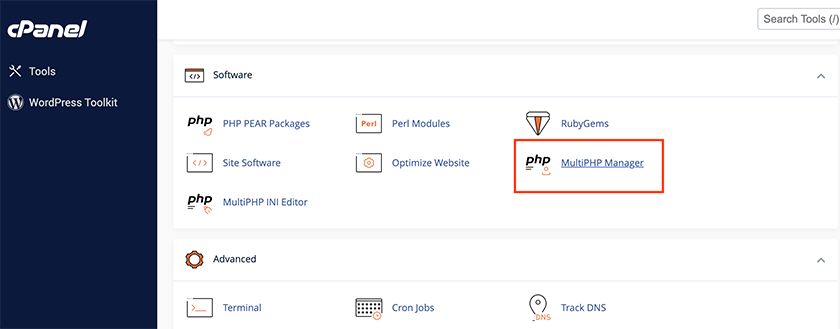
- Navigate to MultiPHP Manager
- Within the “User Domains” section, find your domain
To the right of your domain’s address on the far right side, under the PHP Version column, select the drop-down menu and select the PHP Version for the domain you own.
Modify your PHP version of one or more domains within the cPanel
- Log in to cPanel.
- Navigate to MultiPHP Manager.
Within the Set PHP Version per Domain section, Use the bar for searching to locate your domain name and select the checkbox on the left side of the domain’s name. (Do this for every domain that needs the identical PHP version.)
In the upper right corner section of the Set PHP Version per Domain section, you can click on the drop-down menu beside PHP Version and select the desired PHP version.
Click Apply to switch the PHP version of each of the domains to the chosen PHP version.
Old PHP Versions
Like all pieces of software programs, PHP has a release timetable that it is required to follow so that it can keep working on improvements. Every major release of PHP is generally supportable for two years following the date of release. During this time, security and bugs are patched and fixed regularly.
PHP 5.6, 7.0, 7.1, and 7.2
End-of-life implies that these versions won’t be supported by security and may be vulnerable to unpatched security flaws.
- On November 30 in the year 2020, PHP 7.2 reached the final point of use.
- On the 1st of December 2019, PHP 7.1 was at the expiration date.
- On December 3, 2018, PHP 7.0 reached the expiration date.
- The day after Christmas in 2018, PHP 5.6 also reached its expiration date. This marks the conclusion of a period that was PHP 5, as the first version, 5.0, was launched 14 years ago.
Conclusion
This is the perfect moment to consider using the latest PHP version, which is PHP version 8.2. As mentioned, nowadays, when you buy a VPS hosting service, it automatically comes with the latest PHP 8.2 new features that you can take advantage of. In this article, we discussed how to update the PHP version and how to update the PHP version in WordPress.
Benefits of Upgrading Your PHP Version
Upgrading to the latest PHP version can significantly enhance your website’s performance, security, and compatibility. Newer versions of PHP are optimized for speed, helping your website load faster and handle more requests efficiently. Additionally, they include critical security patches that protect against vulnerabilities.
- Performance: Experience up to 3x faster execution times with the latest PHP versions.
- Security: Secure your site with the latest security updates and patches.
- Compatibility: Ensure compatibility with the latest frameworks and tools.
Steps to Upgrade Your PHP Version
Follow these steps to upgrade your PHP version safely:
- Backup Your Site: Always start by backing up your website files and databases.
- Check Compatibility: Ensure your code and plugins are compatible with the new PHP version.
- Update PHP: Use your hosting control panel or contact your hosting provider to switch to the latest PHP version.
- Test Your Site: Thoroughly test your website for any issues post-upgrade.
PHP Version Comparison Table
| PHP Version | Release Date | Key Features |
|---|---|---|
| PHP 7.4 | November 2019 | Preloading, Typed Properties, Arrow Functions |
| PHP 8.0 | November 2020 | Just-In-Time Compilation, Union Types, Named Arguments |
| PHP 8.1 | November 2021 | Fibers, Readonly Properties, Improved Performance |
FAQ
What is the latest PHP version?
The latest stable PHP version is PHP 8.1, released in November 2021. It includes performance improvements and new features such as Fibers and Readonly Properties.
How do I know if my PHP version needs upgrading?
You can check your PHP version through your hosting control panel or by running a PHP script with phpinfo(). If your version is no longer supported, it’s time to upgrade.
Can I upgrade PHP without affecting my website?
Yes, by ensuring compatibility with your code and plugins before upgrading, you can minimize the risk of issues. Always backup your site and test thoroughly after the upgrade.
For seamless PHP upgrades and expert support, consider our managed hosting solutions at Rackset.
Practical Steps for Upgrading PHP Version
Upgrading your PHP version is crucial for maintaining the security and performance of your websites. Here are practical steps to ensure a smooth transition:
- Backup Your Website: Before initiating the upgrade, create a full backup of your website’s files and database. This ensures that you can restore your site if anything goes wrong during the upgrade.
- Check Compatibility: Review your current codebase and installed plugins for compatibility with the new PHP version. Many developers provide updates or patches to ensure their software works with the latest PHP releases.
- Update Your Development Environment: Test the new PHP version on a local or staging environment. This allows you to identify and resolve any issues without affecting your live site.
- Update PHP Configuration: After upgrading, review and update your php.ini configuration file to ensure optimal performance and compatibility with the new version.
- Monitor Your Site: After the upgrade, closely monitor your website for any errors or performance issues, and address them promptly.
Best Practices for PHP Version Management
Managing PHP versions effectively is key to maintaining a secure and efficient web environment. Here are some best practices to consider:
- Regular Updates: Make it a routine to check for and apply PHP updates. Staying up-to-date reduces vulnerabilities and improves performance.
- Use Version Control: Implement version control systems like Git to manage code changes. This practice helps in tracking modifications and rolling back if necessary.
- Leverage Automation: Use automation tools for testing and deployment. Continuous integration/continuous deployment (CI/CD) pipelines can streamline the upgrade process, ensuring consistency and reducing human error.
- Documentation: Keep detailed records of your PHP version upgrades, including any changes made to configurations and the impact on your applications.
Common Issues and Troubleshooting PHP Upgrades
PHP upgrades can sometimes lead to unexpected issues. Here’s how to troubleshoot common problems:
- Compatibility Errors: If your website breaks after an upgrade, check for deprecated functions or incompatible plugins. Update or replace them with compatible alternatives.
- Performance Issues: If you notice a slowdown, review your PHP configurations and optimize settings such as memory limits and execution times.
- Debugging: Enable error reporting in your PHP settings to identify and fix issues. Use tools like Xdebug for more in-depth debugging.
- Log Analysis: Regularly check server logs for errors or warnings that can provide insight into what might be causing issues post-upgrade.
Comparing PHP Versions: Features and Improvements
Each PHP version brings new features and improvements. Here’s a comparison of recent PHP versions to help you understand the benefits of upgrading:
| PHP Version | Key Features | Performance Improvements |
|---|---|---|
| PHP 7.4 | Arrow functions, typed properties, preloading | Significant performance boost over PHP 7.3 |
| PHP 8.0 | JIT compilation, union types, named arguments | Further performance enhancements with JIT |
| PHP 8.1 | Enums, fibers, read-only properties | Improved performance and memory usage |
Understanding PHP Version Compatibility with Hosting Environments
Upgrading your PHP version is crucial, but it’s equally important to ensure compatibility with your hosting environment. Different hosting providers offer varying levels of support for PHP versions. Before initiating an upgrade, check if your hosting provider supports the latest PHP version and any associated extensions you might need.
Shared hosting environments often lag in supporting the newest PHP versions due to the need to maintain stability across numerous accounts. If you’re using a VPS or dedicated server, you might have more flexibility and control over the PHP version you can install. Always consult your hosting provider’s documentation or support team to confirm compatibility and to understand any potential limitations.
Additionally, consider the compatibility of your web applications and CMS platforms. Some platforms may not yet fully support the latest PHP versions, which could lead to functionality issues. Testing the upgrade in a staging environment before deploying it live is a best practice that can prevent unexpected disruptions.
Best Practices for Testing PHP Version Upgrades
Testing is a critical step in the PHP upgrade process to ensure that your applications continue to function correctly. Begin by setting up a staging environment that mirrors your production setup. This allows you to test the PHP upgrade without affecting your live site.
In the staging environment, run a comprehensive set of tests to cover all functionalities of your application. This includes unit tests, integration tests, and manual testing of key user workflows. Pay special attention to any custom scripts or plugins, as these are often the source of compatibility issues.
- Unit Testing: Use tools like PHPUnit to test individual components of your application for compatibility with the new PHP version.
- Integration Testing: Ensure that all parts of your application work together seamlessly under the new PHP version.
- Manual Testing: Simulate user actions to check for any unexpected behavior or errors.
Document any issues encountered during testing and address them before proceeding with the upgrade on your live site. This proactive approach minimizes downtime and ensures a smooth transition.
Troubleshooting Common Issues After a PHP Upgrade
Even with thorough preparation, issues can arise after upgrading your PHP version. Common problems include deprecated functions, compatibility errors with third-party plugins, and performance issues. Identifying and resolving these issues promptly is essential for maintaining site stability.
Start by enabling error reporting in your PHP configuration to capture any error messages. This can provide valuable insights into what might be going wrong. Look for deprecated functions in your codebase, as newer PHP versions often deprecate older functions. Updating or replacing these functions with their modern equivalents is necessary for compatibility.
If you encounter plugin compatibility issues, check for updates from the plugin developers. Many developers release updates to ensure compatibility with the latest PHP versions. If no updates are available, consider reaching out to the developer for support or looking for alternative plugins.
Performance issues can sometimes occur due to changes in PHP’s internal handling of resources. Profiling your application with tools like Xdebug or New Relic can help identify bottlenecks introduced by the upgrade. Optimizing your code and server configuration based on these findings can restore and even enhance performance.
Comparing PHP Versions: Performance and Security Improvements
Each new PHP version comes with performance enhancements and security improvements that can significantly benefit your application. Comparing the differences between versions can help you understand the tangible benefits of upgrading.
| PHP Version | Performance Improvement | Security Enhancements |
|---|---|---|
| PHP 7.4 | 20-30% faster execution compared to PHP 7.3 | Typed properties, improved type checks |
| PHP 8.0 | JIT compiler for significant performance boosts | Improved error handling, new cryptographic functions |
| PHP 8.1 | Further JIT optimizations, asynchronous signal handling | Fibers for improved concurrency, read-only properties |
Upgrading to a newer PHP version can lead to faster page loads and reduced resource consumption, directly impacting user experience and server costs. Additionally, security enhancements protect your application from vulnerabilities, making regular upgrades a critical component of your security strategy.

Behzad Nategh is the Founder and CEO of Rackset, with 20+ years in web hosting, cloud infrastructure, and web design. He writes on hosting, domains, security, and growing an online business.
Leave a Reply