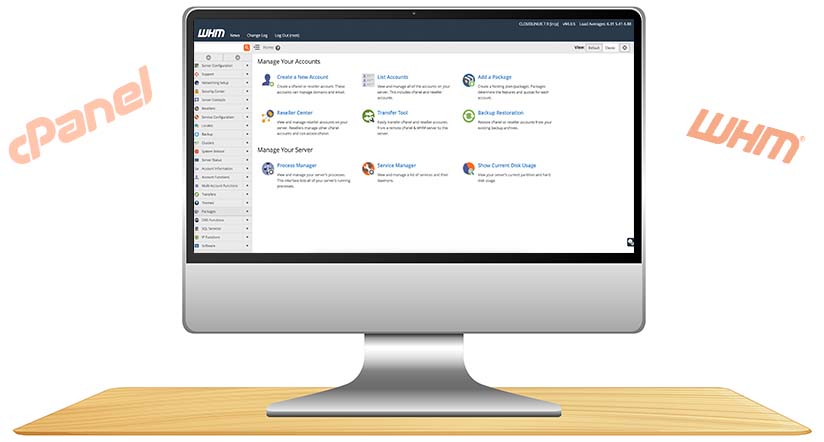
Introduction to WHM and cPanel
If you have experience in the web hosting industry, you are probably aware that you can earn money by creating and hosting websites for new website owners. The best part is that you do not need to establish a web hosting business to offer reseller hosting. You can simply sign up for a virtual private server (VPS), a dedicated server, or purchase a reseller hosting account, and let your web host’s large servers handle the rest. But how is this possible? This can be achieved with WHM.
This article is part of Rackset’s Server guides — browse the rest of the category for more in-depth tutorials on this topic.
What Is WHM?
WHM, or Web Host Manager, is a powerful tool that grants administrators access to the backend of cPanel. It allows for deeper server management than cPanel alone. WHM acts as a manager for any cPanel administrators under its scope, making it especially useful for resellers. However, everyone with a hosting account should be familiar with WHM’s capabilities, as it provides significant control over server and account management.
Key Features of WHM
- Account Management: Create, modify, suspend, and terminate cPanel accounts.
- Server Monitoring: Keep track of server status and resource usage.
- Branding: Customize the WHM interface to reflect your brand, which is crucial for resellers.
- Security Controls: Implement security measures like IP blocking and SSL management.
- Backup Management: Configure and manage backups for cPanel accounts.
Understanding cPanel
cPanel is the user-friendly interface that website owners use to manage their individual hosting accounts. It allows users to handle tasks such as managing email accounts, creating databases, and installing web applications with ease. While WHM provides the overarching control needed by resellers and administrators, cPanel focuses on the day-to-day management of individual websites.
cPanel Features
- Email Management: Create and manage email accounts, forwarders, and autoresponders.
- Domain Management: Add and manage subdomains, parked domains, and redirects.
- File Management: Use File Manager to upload, edit, and organize website files.
- Database Management: Create and manage MySQL databases and users.
- Application Installation: Use Softaculous or similar tools to install web applications like WordPress.
Benefits of Using WHM for Reseller Hosting
Web Host Manager (WHM) offers a robust platform for resellers aiming to manage multiple hosting accounts efficiently. By leveraging WHM, resellers can provide a seamless hosting experience to their clients while maintaining control over their resources. Here are some key benefits of using WHM for reseller hosting:
Efficient Account Management
- Create and Manage cPanel Accounts: WHM allows resellers to create and manage individual cPanel accounts for each client, providing them with their own control panel access.
- Resource Allocation: Resellers can allocate specific resources such as disk space, bandwidth, and email accounts to each cPanel account, ensuring fair distribution and preventing resource abuse.
Branding Opportunities
- White Labeling: Resellers can customize the WHM and cPanel interfaces with their own branding, logos, and color schemes, offering a professional appearance to their clients.
- Custom Packages: Create unique hosting packages tailored to the needs of different clients, enhancing the flexibility of your offerings.
Enhanced Security and Monitoring
- Security Features: WHM provides advanced security settings, including IP blocking, firewall configuration, and SSL certificate management, to protect your clients’ websites.
- Monitoring Tools: Keep track of server performance and usage statistics, enabling proactive management and troubleshooting of potential issues.
Automated Processes
- Backup Management: Schedule automated backups for each cPanel account, ensuring data safety and quick recovery in case of data loss.
- Easy Software Updates: WHM simplifies the process of updating server software and applications, keeping everything up-to-date with minimal effort.
Scalability and Flexibility
- Scalable Solutions: As your reseller business grows, WHM allows you to easily upgrade your server resources to accommodate more clients and increased traffic.
- Flexible Configurations: Customize server settings and configurations to meet the specific needs of your clients, providing a tailored hosting experience.
By utilizing WHM, resellers can efficiently manage their hosting business, provide personalized services to clients, and ensure a secure, reliable hosting environment. This makes WHM an indispensable tool for anyone looking to succeed in the reseller hosting industry.
Setting Up Your WHM Environment
Before you can start creating and managing cPanel accounts in WHM, it’s essential to set up your WHM environment correctly. This initial setup ensures that your hosting services run smoothly and efficiently. Whether you’re using a VPS, dedicated server, or a reseller hosting account, the following steps will guide you through configuring your WHM environment.
Accessing WHM
To access WHM, you’ll need to log in using your server’s IP address or domain name followed by :2087. For example:
https://your-server-ip:2087Use your root or reseller username and password to log in. Once logged in, you’ll have access to a wide range of server management tools.
Basic WHM Configuration
After logging in, it’s important to complete the initial configuration wizard. This wizard will guide you through setting up essential parameters for your server. Key steps include:
- Server Contact Information: Enter an email address where you can receive server alerts and notifications.
- Hostname Configuration: Set a fully qualified domain name (FQDN) for your server, such as
server.yourdomain.com. - Nameservers Setup: Configure your nameservers. You can use your own or your hosting provider’s nameservers.
- IP Address Configuration: Ensure that your server’s IP address is correctly set up for hosting accounts.
Security Settings
Securing your WHM environment is crucial to protect your server and client accounts. Consider implementing the following security measures:
Read more: How to Create Email Account in cPanel
If you need this service, Rackset’s team provides professional cPanel hosting with full support so you can rely on the quality and get set up quickly.
- Enable CSF (ConfigServer Security & Firewall): This firewall provides enhanced security features for your server.
- Set Up Two-Factor Authentication (2FA): Add an extra layer of security to your WHM login process.
- Regularly Update Software: Keep WHM and all server software up to date to protect against vulnerabilities.
Customizing WHM for Resellers
If you’re a reseller, you might want to customize your WHM interface to reflect your branding. WHM allows you to:
- Brand Your Interface: Add your logo and customize the WHM interface to match your brand.
- Create Custom Packages: Define specific hosting packages with tailored resources and features for your clients.
Once your WHM environment is set up, you’re ready to start creating and managing cPanel accounts for your clients, providing them with the tools they need to manage their websites effectively.
Building a Package in WHM
In WHM (Web Host Manager), packages define the resources and features available to a cPanel account. Creating packages allows you to standardize offerings for your customers, making it easier to manage multiple accounts with similar needs. Here’s how you can build a package in WHM:
Steps to Create a Package
- Log in to your WHM account.
- In the WHM dashboard, locate the Packages section in the sidebar.
- Click on Add a Package.
- Fill in the Package Name. Choose a descriptive name that reflects the resources or features of the package.
- Set the Resources for the package:
- Disk Quota (MB): The amount of disk space allocated to the account.
- Monthly Bandwidth (MB): The data transfer limit per month.
- Max FTP Accounts: The maximum number of FTP accounts the user can create.
- Max Email Accounts: The maximum number of email accounts available.
- Max Databases: The maximum number of databases allowed.
- Max Subdomains: The number of subdomains the account can have.
- Max Parked Domains: The number of domains that can be parked.
- Max Addon Domains: The number of additional domains that can be added.
- cPanel Theme: Choose a theme for the cPanel interface.
- Feature List: Select the features available to the account.
- Locale: Set the language for the cPanel interface.
Benefits of Using Packages
Using packages in WHM offers several advantages:
- Consistency: Ensures uniform resource allocation across multiple accounts.
- Efficiency: Simplifies the process of account creation by pre-defining settings.
- Scalability: Easily upgrade or downgrade accounts by switching packages.
By creating packages, you streamline the management of your hosting services, providing a structured and efficient way to handle multiple accounts.
Creating a cPanel Account in WHM
Creating a cPanel account in WHM is a straightforward process that allows you to offer hosting services to your clients. Whether you’re a reseller or managing multiple websites, WHM provides the tools you need to set up individual cPanel accounts with specific resources and permissions. Follow the steps below to create a new cPanel account.
Steps to Create a cPanel Account
- Log in to your WHM account using your administrative credentials.
- In the WHM dashboard, locate the search bar on the left sidebar and type “Create a New Account.” Click on the corresponding link in the search results.
- Fill out the account information form with the following details:
- Domain: Enter the domain name for the new account.
- Username: Provide a unique username for the account.
- Password: Set a strong password for the account. Ensure it meets security standards.
- Email: Enter the contact email address for the account owner.
- In the Package section, select an existing package or create a new one. Packages define the resources and features available to the cPanel account.
- Configure the Settings section:
- cPanel Theme: Choose a theme for the cPanel interface.
- Locale: Select the language for the cPanel account.
- Under DNS Settings, decide whether to enable DKIM and SPF for email authentication.
- In the Mail Routing Settings, choose the appropriate mail routing option based on your server’s configuration.
- Review all the information and click the Create button at the bottom of the page to finalize the process.
Verifying the New cPanel Account
Once the account creation is complete, it’s important to verify that everything is configured correctly:
- Check that the domain is pointing to the correct nameservers.
- Log in to the newly created cPanel account to ensure access and functionality.
- Verify that email accounts, databases, and other features are working as expected.
Creating cPanel accounts in WHM is an essential task for managing multiple websites or offering reseller hosting. By following these steps, you can efficiently set up new accounts and expand your hosting services.
Customizing cPanel Access for Clients
When managing multiple clients through WHM, customizing cPanel access is crucial to ensure that each client has the appropriate level of control over their hosting environment. This not only enhances security but also improves client satisfaction by tailoring their experience to their specific needs. Below are some practical steps and considerations for customizing cPanel access for your clients.
Read more: Comparing cPanel, Plesk, hPanel, DirectAdmin, and WHM
Creating Custom Feature Lists
Feature lists allow you to control which cPanel features are available to your clients. By creating custom feature lists, you can provide a tailored experience that meets the specific requirements of each client.
If you need this service, Rackset’s team provides professional reseller hosting with full support so you can rely on the quality and get set up quickly.
- Log in to your WHM account.
- Navigate to Packages > Feature Manager.
- Click on Add a New Feature List.
- Enter a name for your feature list and click Add.
- Select the features you want to include in this list.
- Click Save to apply the changes.
Assigning Packages
Packages in WHM are predefined sets of resources and features that you can assign to cPanel accounts. By customizing packages, you can efficiently manage resource allocation and feature access for different clients.
- Go to Packages > Add a Package in WHM.
- Fill in the package details, such as disk space, bandwidth, and the feature list you created earlier.
- Click Add to save the package.
- Assign the package to a cPanel account by navigating to Account Functions > Modify an Account.
- Select the account and choose the package you want to assign.
- Click Save to update the account.
Setting Account-Level Privileges
For greater control, you can set specific account-level privileges, ensuring that clients have access only to the tools they need. This can be managed through the WHM interface:
- Navigate to Account Functions > Modify an Account.
- Select the cPanel account you wish to modify.
- Adjust the settings under Privileges as needed.
- Click Save to apply the changes.
By customizing cPanel access through feature lists, packages, and account-level privileges, you can provide a personalized hosting environment that meets the diverse needs of your clients while maintaining security and efficiency.
Managing and Monitoring cPanel Accounts
When managing multiple cPanel accounts in WHM, it is crucial to effectively oversee and monitor these accounts to ensure optimal performance and security. WHM provides a comprehensive suite of tools for this purpose, allowing you to oversee account usage, perform maintenance tasks, and ensure each account functions correctly.
Viewing and Modifying Account Information
To view or modify a cPanel account, navigate to the “List Accounts” section in WHM. Here, you can see all the accounts under your management. This section provides critical information such as domain name, IP address, and account owner.
- Modify Account: Click on the “+” icon next to an account to expand its options. You can change the account’s password, contact email, and resource limits.
- Suspending/Unsuspending Accounts: You can suspend an account to restrict access temporarily, which is useful for non-payment issues or security concerns. Simply click “Suspend” or “Unsuspend” as needed.
Monitoring Resource Usage
WHM allows you to monitor resource usage for each cPanel account, helping you ensure that no single account overuses server resources.
- Go to “Account Information” and select “View Bandwidth Usage” to check the bandwidth consumption of each account.
- Use “Disk Usage” to monitor the disk space used by each account. This is crucial for maintaining optimal server performance.
Security and Backups
Maintaining the security of cPanel accounts is a top priority. WHM provides several tools to help secure accounts and ensure data integrity.
- Backup Management: Regular backups are essential. Set up automated backups in the “Backup Configuration” section to protect against data loss.
- Security Center: Use the Security Center in WHM to configure security settings, such as enabling two-factor authentication and setting up firewall rules.
Automated Monitoring and Alerts
WHM can be configured to send alerts for various events, such as reaching bandwidth limits or detecting potential security breaches. Set these alerts in the “Contact Manager” to ensure you are notified promptly of any issues.
Read more: Installing SVN on CentOS VPS with cPanel
# Example: Setting up an alert for high resource usage
1. Navigate to WHM's "Contact Manager".
2. Configure alert preferences for different types of notifications.
3. Ensure your contact details are up-to-date to receive timely alerts.
By effectively managing and monitoring cPanel accounts in WHM, you can ensure a stable and secure hosting environment for your clients, allowing you to focus on growing your hosting business.
Every website needs stable, fast hosting to stay online. Rackset’s web hosting runs on NVMe storage with high uptime and 24/7 support, giving your site a reliable foundation.
Troubleshooting Common WHM Issues
Managing cPanel accounts in WHM can sometimes present challenges. Here are some common issues you might encounter and practical solutions to resolve them.
1. WHM Login Issues
If you are unable to log into WHM, consider the following steps:
- Ensure that you are using the correct username and password.
- Verify that your IP address is not blocked by the server’s firewall.
- Check if the WHM service is running by executing the following command:
service cpanel status- If the service is down, restart it using:
service cpanel restart2. cPanel Account Creation Errors
When creating a new cPanel account, you might encounter errors. Here are some solutions:
- Ensure that you have not exceeded your account creation limit set by your hosting package.
- Check if the domain name is already in use or incorrectly formatted.
- Verify that you have entered valid DNS settings.
3. DNS Issues
If newly created cPanel accounts are facing DNS problems, consider the following:
- Ensure that the DNS zone file is correctly configured.
- Use WHM’s DNS Zone Manager to edit and verify DNS settings.
- Check for DNS propagation delays, which can take up to 48 hours.
4. Email Configuration Problems
Email issues are common in cPanel accounts. Here are some steps to troubleshoot:
- Ensure that the MX records are correctly configured in the DNS zone.
- Verify that the email account has been properly set up in cPanel.
- Check the mail server status using:
service exim status- If needed, restart the mail server with:
service exim restart5. Resource Limitations
If you receive warnings about resource limitations, consider these actions:
- Review the account’s resource usage in WHM to identify excessive usage.
- Upgrade your hosting package if necessary to accommodate more resources.
- Optimize websites hosted under the account to reduce resource consumption.
By following these troubleshooting steps, you can effectively manage and resolve common WHM issues, ensuring smooth operation for your hosting environment.
Simplify Your cPanel Management
Streamline your cPanel account creation and management with Rackset’s powerful hosting solutions. Enjoy seamless integration and intuitive controls that make managing your online presence effortless.
Elevate your hosting experience with Rackset!
Conclusion
Creating and managing cPanel accounts in WHM is a critical task for web hosting administrators. It allows them to effectively allocate resources and provide clients with the tools they need to manage their websites. By following the steps outlined in this guide, you can ensure that each cPanel account is set up with the appropriate settings and security measures, enhancing the overall performance and reliability of your hosting services. Regularly monitoring these accounts and making necessary adjustments will help maintain an optimal hosting environment.
As you become more familiar with WHM and its capabilities, you’ll find that managing multiple cPanel accounts becomes a seamless part of your hosting operations. If you’re looking to streamline your web hosting services or need further assistance, consider exploring Rackset’s comprehensive solutions for web hosting, VPS, and dedicated servers. Our expert support team is always ready to help you optimize your hosting experience and ensure your clients receive top-tier service.
Frequently Asked Questions
What is WHM and how does it relate to cPanel?
WHM (Web Host Manager) is a powerful tool used by web hosting providers to manage multiple cPanel accounts. It provides administrative control over the server, allowing you to create, delete, and manage cPanel accounts.
How do I create a new cPanel account in WHM?
To create a new cPanel account in WHM, log in to WHM and navigate to ‘Account Functions’ > ‘Create a New Account’. Fill in the domain, username, password, and other necessary details, then click ‘Create’.
What are the essential settings when creating a cPanel account?
When creating a cPanel account, essential settings include the domain name, username, password, and package selection. You may also configure resource limits such as disk space and bandwidth based on the hosting package.
How can I manage existing cPanel accounts in WHM?
Existing cPanel accounts can be managed in WHM under ‘Account Information’. You can modify account settings, change passwords, suspend or terminate accounts, and view account statistics.
Can I upgrade or downgrade a cPanel account’s package in WHM?
Yes, you can upgrade or downgrade a cPanel account’s package in WHM by navigating to ‘Account Functions’ > ‘Upgrade/Downgrade an Account’. Select the account and choose the desired package to apply the changes.

Behzad Nategh is the Founder and CEO of Rackset, with 20+ years in web hosting, cloud infrastructure, and web design. He writes on hosting, domains, security, and growing an online business.
Leave a Reply