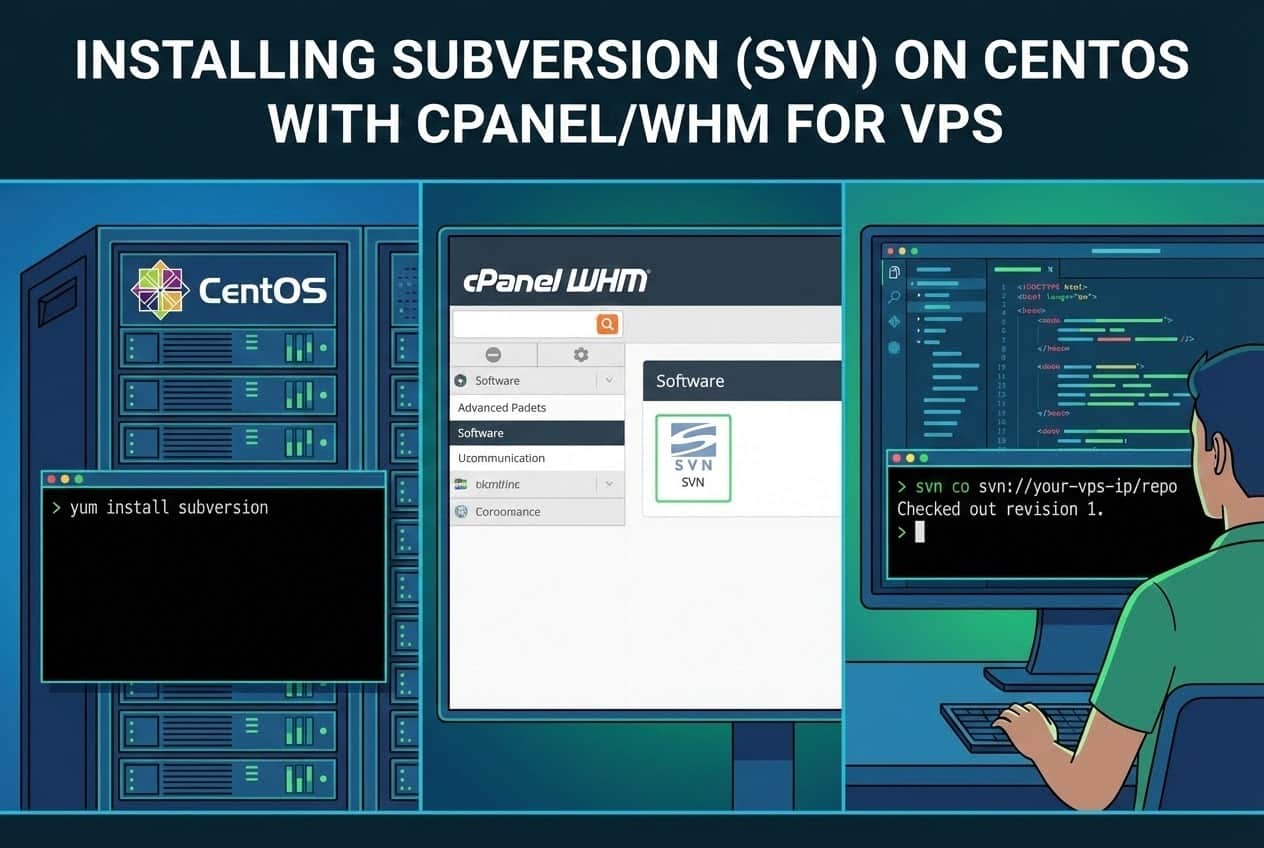
Introduction to Subversion and CentOS VPS
Subversion (SVN) is a powerful open-source version control system that helps developers manage changes to source code over time. It is widely used for maintaining current and historical versions of files such as source code, web pages, and documentation. SVN’s version control capabilities make it an essential tool for collaborative development projects, allowing multiple users to work on the same project without conflict.
This article is part of Rackset’s Server guides — browse the rest of the category for more in-depth tutorials on this topic.
Why Use Subversion on a CentOS VPS?
For developers using a Virtual Private Server (VPS) running CentOS, integrating SVN can streamline deployment and collaboration. CentOS is a robust, enterprise-class Linux distribution derived from Red Hat Enterprise Linux (RHEL), known for its stability and performance. A VPS running CentOS provides a dedicated environment that offers more resources and control compared to traditional shared hosting.
By using SVN on a CentOS VPS, developers can:
- Track changes in their projects efficiently.
- Collaborate with team members in real-time.
- Revert to previous versions of files when necessary.
- Manage multiple branches of a project seamlessly.
cPanel/WHM Integration
Managing your server with cPanel/WHM adds an extra layer of convenience. cPanel provides a user-friendly interface for managing web hosting accounts, while WHM (Web Host Manager) allows server administrators to manage the server itself. Integrating SVN with cPanel/WHM can enhance your development workflow by offering easy access to server management tasks alongside version control.
Prerequisites for Installing SVN
Before beginning the installation of SVN on your CentOS VPS, ensure you have the following:
- A VPS running CentOS (e.g., CentOS 7 or 8).
- Root access (or a user with
sudoprivileges) to the server via SSH. - The cPanel/WHM control panel installed and accessible.
- Basic familiarity with the Linux command line.
For those looking to enhance their website’s performance, upgrading to VPS server hosting can offer more reliability and speed compared to traditional shared hosting.
Prerequisites for Installing SVN
Before you begin the installation of Subversion (SVN) on your CentOS VPS with cPanel, ensure that you meet the following prerequisites. These requirements are essential for a smooth installation process and proper functionality of SVN.
System Requirements
- Operating System: A VPS running CentOS, preferably CentOS 7 or 8.
- Access Level: Root access or a user with
sudoprivileges to the server via SSH. - Control Panel: cPanel/WHM installed and accessible on your server.
Technical Skills
- Command Line: Basic familiarity with the Linux command line is necessary to execute commands and manage the server effectively.
Network and Security
- SSH Access: Ensure SSH access is configured, and you can connect to your VPS using an SSH client.
- Firewall Settings: Adjust firewall settings to allow necessary ports for SVN, typically port 3690 for SVNserve.
Optional Considerations
- VPS Hosting: If you are looking to enhance your website’s performance, consider upgrading to a VPS server for more reliability and speed compared to traditional shared hosting.
SSH Connection
To connect to your server via SSH, use the following command:
ssh root@your_server_ipReplace your_server_ip with the actual IP address of your VPS.
Firewall Configuration
Ensure that your firewall allows connections to the SVN port. You can use the following command to open port 3690:
firewall-cmd --zone=public --add-port=3690/tcp --permanent
firewall-cmd --reload
With these prerequisites in place, you are ready to proceed with the installation of SVN on your CentOS VPS.
Connecting to Your VPS via SSH
To begin installing Subversion on your CentOS VPS, you first need to establish a secure connection to your server using SSH. This allows you to execute commands directly on the server. Below are the steps to connect to your VPS via SSH:
Step-by-Step Guide to SSH Connection
-
Obtain Your Server’s IP Address
Ensure you have the correct IP address of your VPS. This information is typically provided by your hosting provider or can be found in the cPanel/WHM dashboard.
Read more: How to Install Apache on CentOS 9 Stream
If you need this service, Rackset’s team provides professional Linux VPS with full support so you can rely on the quality and get set up quickly.
-
Access Terminal or Command Prompt
On your local machine, open the terminal (Linux/Mac) or Command Prompt (Windows). If you are using Windows, you may prefer to use a terminal emulator like PuTTY.
-
Execute the SSH Command
Use the SSH command to connect to your server. Replace
your_server_ipwith your actual server IP address. If you’re not using the default SSH port (22), specify the port using the-pflag.ssh root@your_server_ipIf you’re connecting with a user other than root, replace
rootwith your username. -
Authenticate with Your Password
After executing the SSH command, you will be prompted to enter your password. Type your password and press
Enter. -
Verify the Host Key
On your first connection, SSH will ask you to verify the server’s host key. Type
yesto continue.
Troubleshooting SSH Connection Issues
- Connection Refused: Ensure the SSH service is running on your server and that you are using the correct IP address and port.
- Authentication Failed: Double-check your username and password. Ensure your SSH key is correctly configured if using key-based authentication.
- Network Unreachable: Verify your internet connection and that your VPS is online.
Once connected, you have full command-line access to your CentOS VPS, allowing you to proceed with the installation of Subversion and other server management tasks.
Installing Subversion Using YUM
Subversion is available in the standard CentOS repositories, making it straightforward to install using the Yellowdog Updater, Modified (YUM) package manager. Follow these steps to install Subversion on your CentOS VPS:
Step 1: Connect to Your Server via SSH
To begin, connect to your server using SSH. Use the following command, replacing your_server_ip with your actual server IP address:
ssh root@your_server_ipStep 2: Install Subversion
Once connected to your server, install Subversion and its dependencies using YUM with the following command:
yum install subversionThis command will prompt you to confirm the installation. Type y and press Enter to proceed. YUM will download and install Subversion along with any required dependencies.
Step 3: Verify the Installation
After the installation is complete, verify that Subversion is installed correctly by checking its version. Use the following command:
svn --versionThis command should return the version number of Subversion, confirming that the installation was successful.
Read more: Understanding cPanel VPS and Cloud Server Hosting
If you need this service, Rackset’s team provides professional cPanel hosting with full support so you can rely on the quality and get set up quickly.
Additional Configuration (Optional)
You might want to configure Subversion for specific use cases or integrate it with your development workflow. Some additional configurations include:
- Setting up a repository
- Configuring user access and permissions
- Integrating with other tools or services
For more advanced configurations, refer to the official Subversion documentation or additional guides specific to your needs.
Creating and Structuring SVN Repositories
Once SVN is installed on your CentOS VPS, the next step is to create and structure your repositories. This process involves setting up a directory to store your repositories and then creating individual repositories for your projects.
Step 1: Create a Directory for SVN Repositories
It’s a good practice to store all SVN repositories in a dedicated directory. This helps in managing and backing up your repositories efficiently.
# Create a directory for SVN repositories
mkdir /var/svn

# Set appropriate permissions
chown -R root:root /var/svn
chmod -R 755 /var/svn
Step 2: Create an SVN Repository
With the directory in place, you can now create an SVN repository. Each project should have its own repository to maintain a clean and organized structure.
# Navigate to the SVN directory
cd /var/svn

# Create a new SVN repository
svnadmin create project_repo
Repository Structure
Typically, an SVN repository is structured into three main directories:
- trunk: This is where the main development happens. It’s the latest working copy of your project.
- branches: This directory is used to maintain different branches of the project, allowing for simultaneous development of features.
- tags: This is used to store snapshots of the project at certain points, often used for releases.
Step 3: Initialize Repository Structure
After creating the repository, you should initialize it with the standard directory structure.
# Create the standard directory structure
svn mkdir file:///var/svn/project_repo/trunk file:///var/svn/project_repo/branches file:///var/svn/project_repo/tags -m "Initial repository structure"
Step 4: Configure Repository Access
To manage who can access the repository, configure the access control settings. This is done by editing the `svnserve.conf` file located in the `conf` directory of your repository.
# Edit the svnserve.conf file
nano /var/svn/project_repo/conf/svnserve.conf

# Example configuration
[general]
anon-access = none
auth-access = write
password-db = passwd
After configuring the access settings, you can start using your SVN repository for version control. This setup not only enhances collaboration but also ensures that your projects are well-organized and easily manageable.
Configuring User Authentication and Authorization
After successfully installing Subversion (SVN) on your CentOS VPS with cPanel, the next crucial step is to configure user authentication and authorization. This ensures that only authorized users can access and modify your repositories, maintaining the integrity and security of your projects.
Step 1: Create a Password File for Authentication
SVN uses a password file to authenticate users. This file can be created and managed using the htpasswd command.
cd /etc/svn
htpasswd -c svn-auth-file username1
Replace username1 with your desired username. You will be prompted to enter and confirm a password.
To add more users, use:
htpasswd svn-auth-file username2
Repeat this command for each additional user you wish to add, replacing username2 with the new username.
Step 2: Configure Authorization Rules
Authorization rules determine what actions authenticated users can perform on your repositories. These rules are defined in the authz file.
Edit the authz file located in your SVN configuration directory:
nano /etc/svn/authz
Define your access rules. For example:
[groups]
developers = username1, username2

[/]
* =
@developers = rw

[repository:/trunk]
username1 = rw
username2 = r
[groups]: Defines user groups for easier management.[/]: Sets global repository permissions.[repository:/trunk]: Sets specific permissions for thetrunkdirectory inrepository.rw: Read and write access.r: Read-only access.
Step 3: Configure Apache to Use Authentication and Authorization
Ensure Apache is configured to use the authentication and authorization files. Edit the Apache configuration file for SVN, typically found in /etc/httpd/conf.d/subversion.conf:
nano /etc/httpd/conf.d/subversion.conf
Add or modify the following lines:
<Location /svn>
    DAV svn
    SVNParentPath /var/www/svn
    AuthType Basic
    AuthName "Subversion Repository"
    AuthUserFile /etc/svn/svn-auth-file
    AuthzSVNAccessFile /etc/svn/authz
    Require valid-user
</Location>
After making these changes, restart Apache to apply the new configuration:
For projects that need guaranteed resources and full root control, a VPS is the right step up from shared hosting. With VPS hosting you get dedicated CPU/RAM, NVMe storage, a dedicated IP and high uptime, deployed in minutes.
systemctl restart httpd
With these steps, your SVN setup on CentOS VPS with cPanel is now configured with secure user authentication and authorization, ensuring that only the right people have access to your code repositories.
Testing and Verifying SVN Installation
After installing Subversion on your CentOS VPS, it’s crucial to ensure that the installation was successful and that the service is running correctly. Follow these steps to test and verify your SVN setup:
Verify SVN Installation
To confirm that Subversion is installed correctly, execute the following command to check the SVN version:
svn --versionIf SVN is installed properly, you should see output similar to this:
svn, version 1.14.1 (r1886195)
   compiled May  7 2023, 14:34:14 on x86_64-redhat-linux-gnu

Copyright (C) 2023 The Apache Software Foundation.
This software consists of contributions made by many people; see the NOTICE
file for more information.
Subversion is open source software, see http://subversion.apache.org/
This output confirms that SVN is installed and provides details about the version and compilation date.
Create a Test Repository
To further verify the installation, create a test repository. This will confirm that SVN is functioning as expected. Run the following commands:
mkdir /var/svn
svnadmin create /var/svn/testrepo
These commands create a directory for SVN repositories and initialize a new repository named `testrepo`.
Verify Repository Creation
Check the contents of the newly created repository directory to ensure it has been set up correctly:
ls /var/svn/testrepoYou should see the following standard SVN repository structure:
conf db format hooks locks README.txtAccess the Repository
Finally, test accessing the repository using the `svn` command:
svn list file:///var/svn/testrepoIf everything is set up correctly, you should see no output, as the repository is empty. This indicates that the repository is accessible and ready for use.
Troubleshooting
If you encounter any errors during these steps, consider the following:
- Ensure that all commands are run with root or sudo privileges.
- Verify that the SVN service is not blocked by any firewall rules.
- Check the system logs for any error messages related to SVN.
By following these steps, you can confirm that Subversion is installed and configured correctly on your CentOS VPS with cPanel. This setup will allow you to efficiently manage version control for your projects.
Best Practices for Managing SVN on CentOS VPS
Managing Subversion (SVN) effectively on your CentOS VPS with cPanel involves several best practices that ensure smooth operation, security, and ease of collaboration. By following these guidelines, you can maintain an efficient and secure version control environment.
Regular Backups
Regularly backing up your SVN repositories is crucial to prevent data loss. Consider the following practices:
- Automate backups using cron jobs to run at off-peak hours.
- Store backups in a secure, off-site location.
- Test your backup and restore process periodically to ensure data integrity.
User Access Management
Properly managing user access is key to maintaining security and operational efficiency:
- Use cPanel’s built-in tools to manage user accounts and permissions.
- Limit repository access to only those users who need it.
- Regularly review user access levels and adjust as necessary.
Repository Organization
Organizing your repositories effectively can significantly enhance productivity:
- Adopt a consistent naming convention for repositories and branches.
- Use tags to mark stable releases and milestones.
- Regularly clean up obsolete branches and tags.
Monitoring and Logging
Implement monitoring and logging to keep track of repository activity and server health:
- Enable logging for SVN operations to track changes and identify issues.
- Use monitoring tools to keep an eye on server performance and resource usage.
- Set up alerts for unusual activities or errors.
Security Enhancements
Enhancing security is vital to protect your codebase and server:
- Use SSH keys for secure authentication instead of passwords.
- Regularly update your SVN and CentOS to patch security vulnerabilities.
- Implement firewall rules to restrict access to the SVN server.
Performance Optimization
Optimizing performance ensures that your SVN operations are quick and efficient:
- Regularly clean up and optimize your repository using SVN’s built-in tools.
- Consider using a VPS with higher resources if performance issues persist.
- Utilize caching mechanisms to speed up access to frequently used data.
By adhering to these best practices, you can manage your SVN on a CentOS VPS with cPanel effectively, ensuring a secure, efficient, and collaborative environment for your development projects.
Effortless SVN Hosting with Rackset
Transform your development workflow by hosting SVN on a powerful CentOS VPS. With Rackset’s robust Linux VPS solutions, you gain the speed, security, and scalability developers need to manage code efficiently.
Unlock seamless code management today!
Conclusion
By following the steps outlined in this guide, you have successfully installed and configured SVN on your CentOS VPS with cPanel. This setup allows you to efficiently manage your code repositories and collaborate with your team using SVN’s robust version control capabilities. With SVN integrated into your CentOS environment, you can now track changes, revert to previous versions, and ensure that your development process is streamlined and organized.
If you encounter any issues or need further assistance, don’t hesitate to reach out to the Rackset support team. We’re here to help you make the most of your hosting environment. Additionally, explore our other hosting solutions and services to enhance your development and deployment workflows. Whether you’re managing a small project or a large-scale application, Rackset offers the tools and support you need to succeed.
Frequently Asked Questions
What is SVN and why use it on CentOS VPS with cPanel?
SVN, or Subversion, is a version control system that helps manage changes to source code over time. Using SVN on a CentOS VPS with cPanel allows developers to efficiently collaborate on projects, track revisions, and maintain code integrity.
How do I install SVN on a CentOS VPS with cPanel?
To install SVN on a CentOS VPS with cPanel, first access your server via SSH. Then, use the command ‘yum install subversion’ to install SVN. Ensure you have root or sudo privileges to complete the installation.
What are the prerequisites for installing SVN on CentOS?
Before installing SVN on CentOS, ensure you have root or sudo access to the server. Also, confirm that your CentOS version is supported and that you have a stable internet connection to download the necessary packages.
Can I manage SVN repositories through cPanel?
While cPanel does not natively support SVN management, you can manage SVN repositories through SSH or by integrating with third-party tools. Some users prefer using command-line tools or web-based interfaces for SVN administration.
How do I create a new SVN repository on CentOS?
To create a new SVN repository, use the command ‘svnadmin create /path/to/repository’. Replace ‘/path/to/repository’ with your desired directory path. Ensure the directory is accessible and has the appropriate permissions set.

Behzad Nategh is the Founder and CEO of Rackset, with 20+ years in web hosting, cloud infrastructure, and web design. He writes on hosting, domains, security, and growing an online business.
Leave a Reply